
Why Online File Storage Needs a Little Care
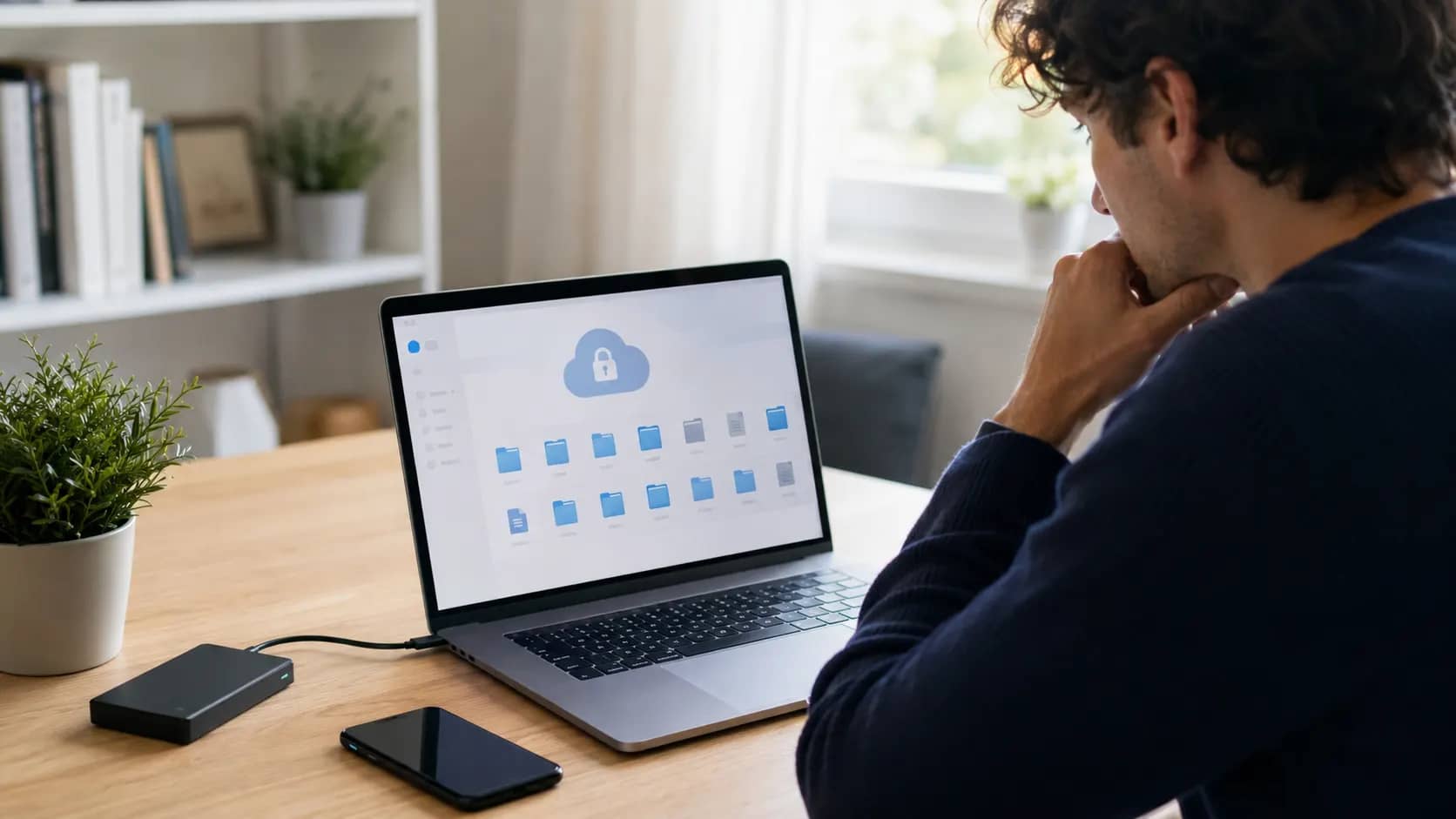
Most people store files online without thinking much about it. Photos, work documents, IDs, school files, invoices, passwords screenshots, family videos, business notes. Everything slowly ends up in the cloud.
It feels convenient. And it is.
But convenience can become risky when files are stored with weak passwords, messy folders, open sharing links, or no backup plan. One wrong setting can expose something private. One forgotten password can lock you out. One careless click can make an important file disappear
The goal is not to be scared of online storage. The goal is to use it properly.
A Safer Way to Keep Your Files Online
Storing files safely online starts with one simple idea. Do not treat the cloud like a random drawer.
A drawer can be messy because only you open it. Online storage is different. It connects to accounts, devices, apps, links, and sometimes other people. That means your habits matter.
A little care can protect years of photos, documents, and personal memories.
Choose a Trusted Storage Service
Not every free storage app deserves your most important files.
Use a well known service with clear security features, account recovery, privacy settings, and reliable support. Google Drive, OneDrive, iCloud, Dropbox, and similar large providers are common choices, but the right one depends on what devices you use and what kind of files you store.
Before choosing, check a few basic things. Does it support multifactor authentication? Can you recover deleted files? Can you control who sees shared files? Does it show recent account activity?
These features matter more than a nice looking app.
Use a Strong Password for The Account
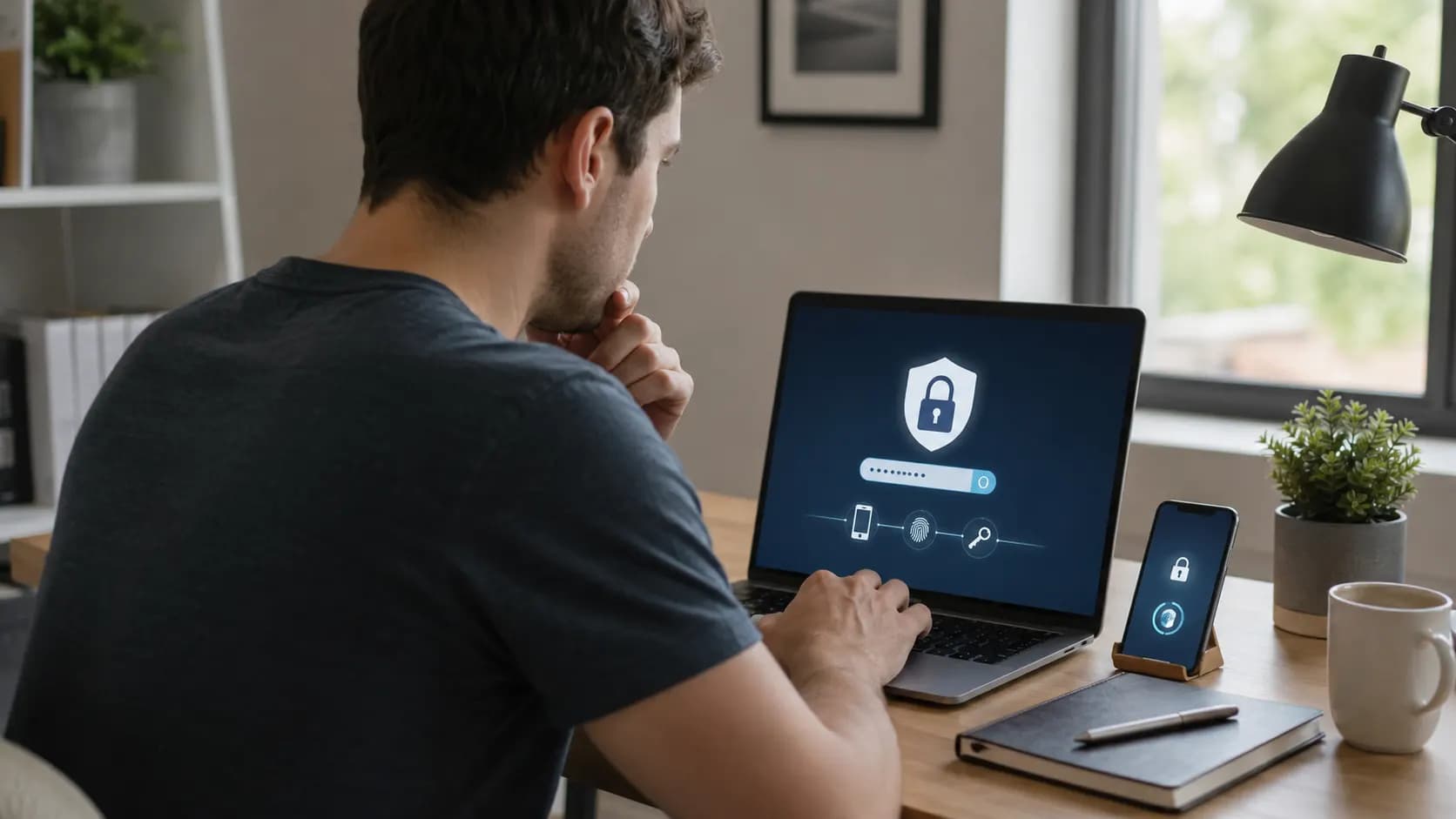
Your cloud storage is only as safe as the account that opens it.
Avoid simple passwords based on your name, birthday, phone number, pet name, or common words. Also avoid using the same password you use for email, social media, or shopping sites.
A strong password should be long and hard to guess. A password manager can help if you struggle to remember different passwords.
This is one area where being lazy can cost you. If someone gets into your cloud account, they may see much more than one file.
Turn on Multifactor Authentication
Multifactor authentication adds another step when signing in. It may ask for a code, app approval, passkey, or security prompt.
This extra step can feel slightly annoying at first. Worth it.
CISA explains that multifactor authentication gives accounts more protection than using only a username and password, and the FTC also recommends two factor authentication as one of the best ways to protect accounts.
For online file storage, this is one of the most important settings to turn on.
Organize Files Before They Become a Mess

A messy cloud drive creates problems later.
You may upload the same file many times. You may lose the final version. You may forget where private documents are stored. After a few years, the whole thing becomes digital clutter.
Create simple folders that make sense to you.
Keep reading
8 Simple Online Safety Tips to Protect Yourself
Examples:
Personal documents
Work files
Family photos
Travel documents
Receipts and bills
Old files to review
You do not need a perfect system. Just something clear enough that you can find important files quickly.
Be Careful with Sharing Links
Sharing links are useful, but they can also be risky.
Many people share a file once and forget the link exists. Months later, the file may still be open to anyone with the link. That is not good for private documents, business files, family photos, or anything personal.
Before sharing, check the access setting. Is it private? Can only specific people open it? Can they edit it, or only view it?
If the file is sensitive, avoid public links. Share with specific email addresses when possible. After the person no longer needs access, remove it.
A small check here can prevent a big mistake.
Keep a Backup Outside the Same Account

Cloud storage is useful, but it should not be your only copy of important files.
Accounts can get locked. Files can be deleted by mistake. Sync problems can happen. Devices can be stolen. Ransomware and malware can also affect files.
For very important documents, keep another backup. That could be an external hard drive, another trusted cloud account, or a secure offline copy.
The UK National Cyber Security Centre notes that offline backups can remain unaffected if an incident impacts live systems.
Think of it like this. If one account fails, you should still have a way back.
Protect the Devices That Access Your Files
Your cloud account may be secure, but your phone or laptop can still be the weak point.
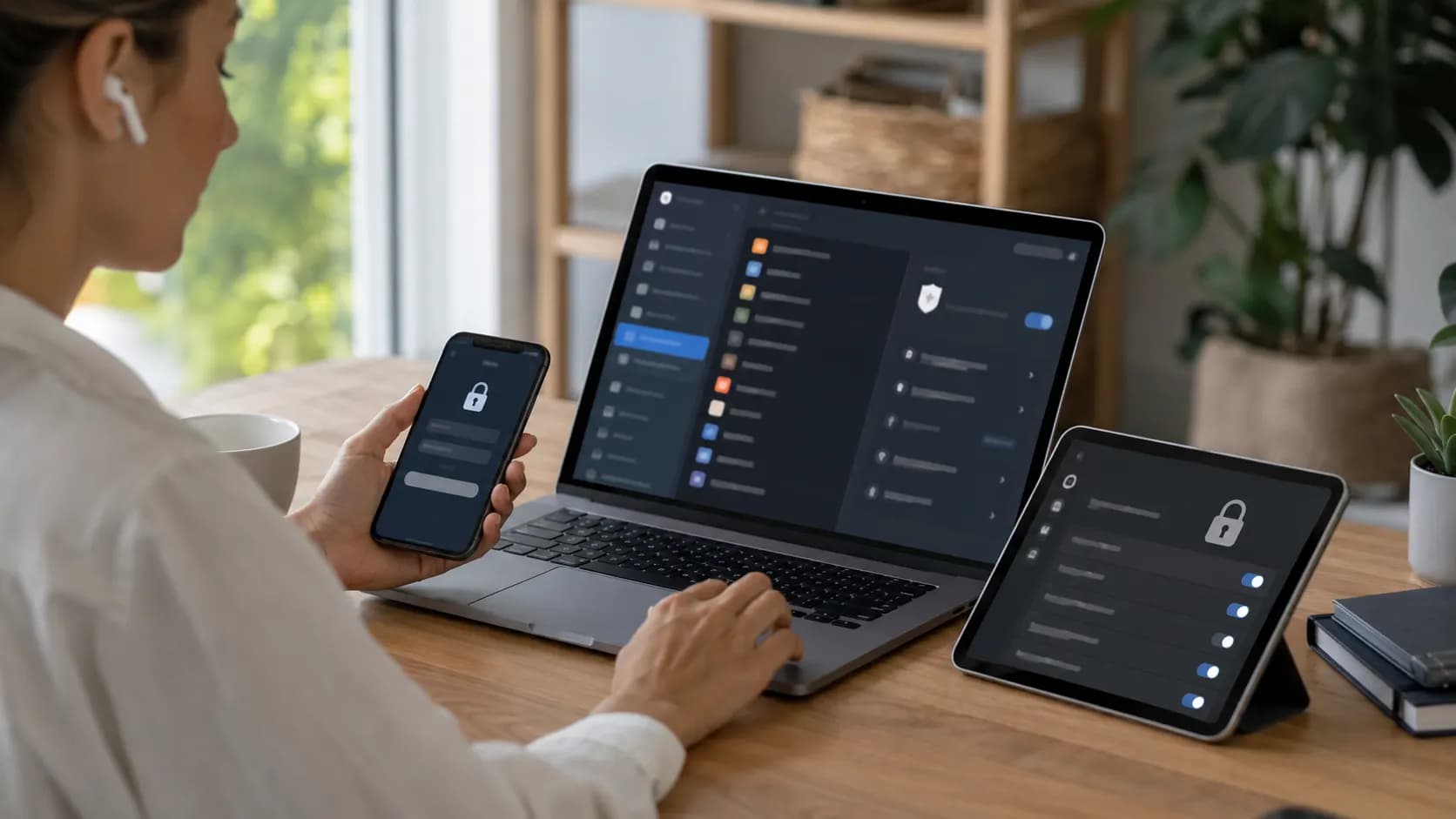
Use a screen lock. Keep your device updated. Do not install random apps from unknown sources. Be careful when signing in on public computers. If you must use another device, sign out properly afterward.
Also check which devices are connected to your cloud account. Remove old phones, laptops, or browsers you no longer use.
A forgotten old device can become an open door.
Avoid Storing Sensitive Files Without Extra Care
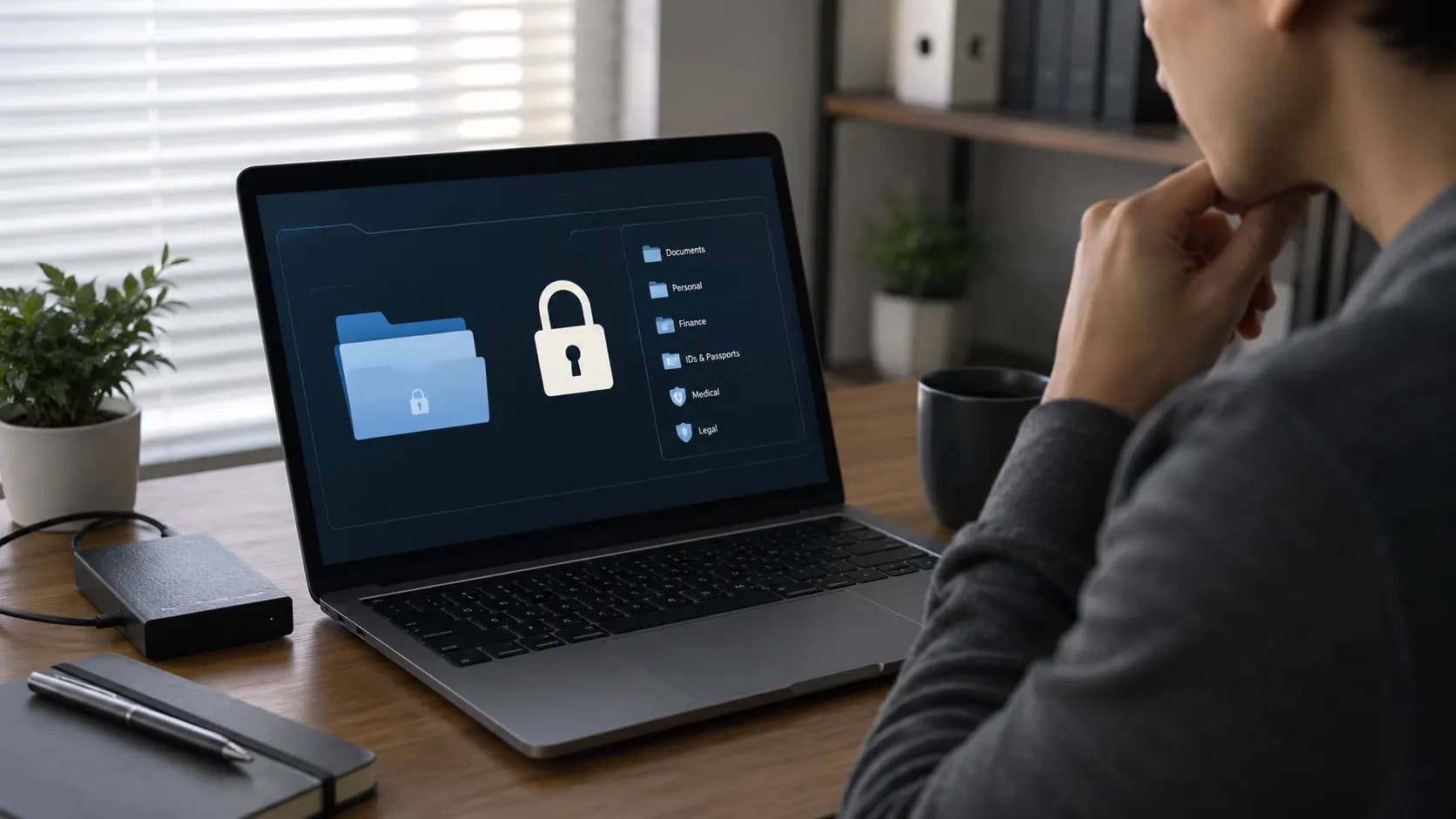
Some files deserve more protection.
Passport copies, ID cards, financial documents, legal papers, private business files, medical reports, and personal records should not be scattered everywhere.
Store them in a clearly named private folder. Do not share them through public links. Consider adding password protection or encryption for very sensitive files.
The NCSC highlights cloud security areas such as encryption, authentication, access control, and monitoring as important parts of safer cloud use.
For normal users, that means choosing secure settings and not leaving private files open by accident.
Reference notes
Sources and further reading
- Cisa (opens in a new tab)https://www.cisa.gov/topics/cybersecurity-best-practices/multifactor-authentication
- FTC Consumer Advice (opens in a new tab)https://consumer.ftc.gov/articles/use-two-factor-authentication-protect-your-accounts
- Ncsc (opens in a new tab)https://www.ncsc.gov.uk/blog-post/offline-backups-in-an-online-world
Our editorial promise
Prepared with clarity and care.
This guide completed our editorial review before publishing. If something needs attention, report a correction or contact the publisher.
About this article
- Published:
- Last updated:
- Author:
- Ceyora Editorial Team
- Review status:
- Editorially reviewed
- Sources:
- 4
- Corrections:
- Report an issue