

Start Creating Without a Big Budget
Creating good social media content can feel expensive. You need attractive graphics, short videos, fresh ideas, captions, photographs, and a reliable way to publish everything. That sounds like a full creative team.
It does not have to be.
Several free tools can handle most of the work, even when you have little design or editing experience. The difficult part is not finding apps. It is choosing a small group that works well together without making your routine more complicated.
Here are some of the most useful free tools for creating social media content, along with the situations where each one works best.

Canva for Everyday Social Media Graphics
Canva is one of the easiest places to start. It provides ready-made layouts for Instagram posts, Facebook covers, Pinterest graphics, stories, presentations, and many other formats.
You can select a template, replace the photograph, change the colors, add your message, and download the finished design. This makes Canva especially useful for small businesses, bloggers, community pages, and creators who do not have professional design experience.
The free plan gives users access to many templates, fonts, photographs, illustrations, and basic editing features. Some designs and elements require payment, but there is still enough free content for regular posting. Canva confirms that its free plan is available to anyone.
Try creating three reusable templates for your page. One could be for tips, another for quotes, and another for announcements. This helps your content look consistent without designing every post from the beginning.
Adobe Express for Quick Branded Content
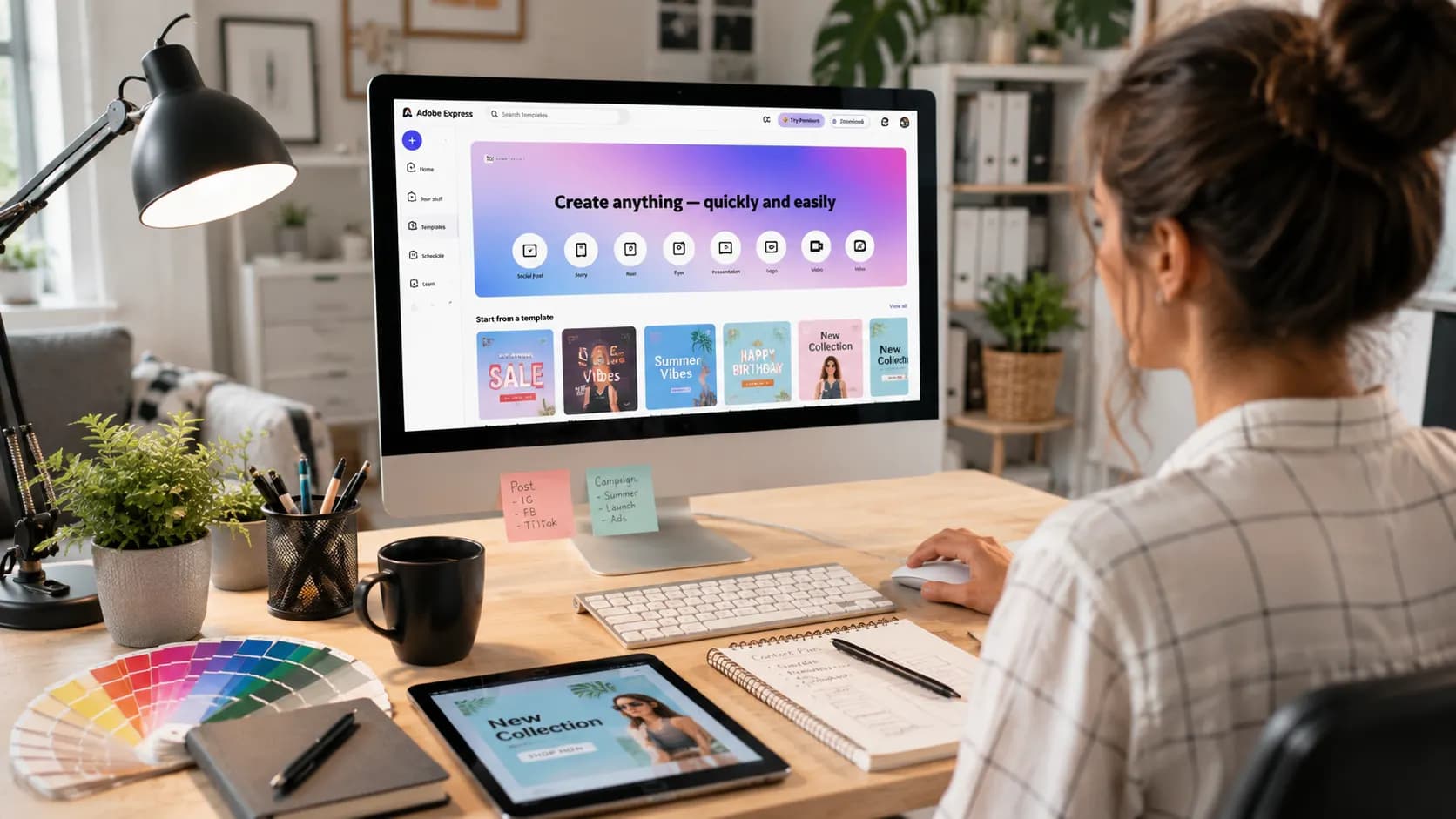
Adobe Express is another strong option for graphics, short videos, posters, and promotional posts. It feels clean and beginner friendly, while still offering useful creative controls.
Its free plan includes more than 100,000 static and video templates, thousands of fonts, standard editing tools, stock media, and 5GB of storage. It can also plan and schedule content to one account per social network.
Adobe Express works well when you want polished business content, product promotions, event announcements, or simple animated posts. You may prefer it over Canva if you already use other Adobe products or like its visual style.
There is no need to use both platforms every day. Test each one for a week and keep the tool that feels faster.
CapCut for Reels and Short Videos
Short videos often receive more attention than static posts, but editing them can look intimidating. CapCut makes the process easier.
You can trim clips, combine scenes, add music, create captions, adjust video speed, apply transitions, and use ready made templates. Its online editor can be used on computers, while mobile apps are convenient for editing footage recorded on your phone.
CapCut is particularly useful for Instagram Reels, TikTok videos, YouTube Shorts, tutorials, recipe clips, before and after content, and simple product demonstrations.
Templates can save time, but they should not control your entire style. Change the text, timing, clips, and music where possible. A recognizable personal style is more valuable than copying every popular video trend.
Pexels for Free Photographs and Video Clips


Keep reading
How to Plan a Family Budget Without Stress
Not everyone can photograph every subject they want to discuss. Pexels provides free stock photographs and videos covering food, travel, workplaces, nature, technology, families, fitness, and many other topics.
Its license allows photographs and videos to be downloaded, edited, and used for free. Attribution is not required, although crediting creators is appreciated.
Stock media works best when it supports your message rather than becoming the message. Choose natural looking images that match your page. Avoid photographs that feel staged or have appeared on hundreds of other accounts.
You can also combine Pexels footage with CapCut. For example, a travel page could mix original phone clips with a few stock scenes when creating a destination video.
Google Trends for Finding Content Ideas
A beautiful post will not achieve much when the topic does not interest your audience. Google Trends helps you explore what people are searching for by topic, location, time, and popularity.
Enter two related ideas and compare their interest. A food creator might compare “high protein breakfast” with “healthy breakfast ideas.” A home page might compare “small bedroom ideas” with “bedroom organisation.”
Do not chase every sudden trend. Look for subjects that connect naturally with your page and offer something helpful.
Readers who struggle with planning may also find value in your related article, Digital Habits That Quietly Waste Your Time.
Buffer for Planning and Scheduling Posts

Creating posts is only one part of the job. You also need to publish them consistently.
Buffer allows creators to prepare captions, upload media, and schedule posts in advance. Its free plan supports up to three social channels and allows ten scheduled posts per channel at one time.
This is useful when you want to prepare several posts during one quiet afternoon rather than stopping every day to publish something.
Scheduling should support your routine, not make the account feel automatic. Leave room for spontaneous posts, replies, current conversations, and audience feedback.
Meta Business Suite for Facebook and Instagram
People managing Facebook and Instagram pages may not need an outside scheduling tool. Meta Business Suite is free and allows users to create, schedule, and manage posts across both platforms. It also provides content insights and a calendar style planner.
It is a practical choice for page owners who mainly publish on Facebook and Instagram. You can plan posts, stories, and Reels from one place while checking which content performs well.

Reference notes
Sources and further reading
Our editorial promise
Prepared with clarity and care.
This guide completed our editorial review before publishing. If something needs attention, report a correction or contact the publisher.
About this article
- Published:
- Last updated:
- Author:
- Ceyora Editorial Team
- Review status:
- Editorially reviewed
- Sources:
- 6
- Corrections:
- Report an issue